
How to Set Up IPTV on Firestick in 2026 (Step-by-Step Guide)
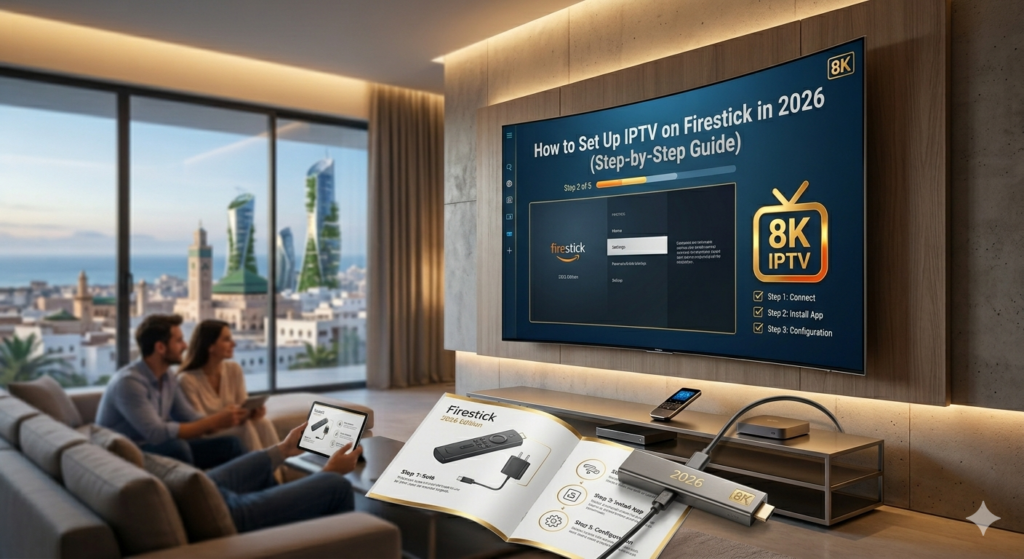
Setting up IPTV on Firestick is the easiest way to cord-cut in 2026. This guide shows you exactly how to install and run IPTV on Firestick step by step. Whether you’re new to IPTV on Firestick or switching providers, getting IPTV on Firestick working has never been simpler.
Why Firestick Is the Most Popular IPTV Device
Setting up IPTV on a Firestick has become the go-to approach for cord-cutters because Amazon’s streaming stick is affordable, widely available, and runs Android-based software that handles IPTV apps exceptionally well. At under $50 for the 4K Max version, it delivers a premium streaming experience without the cost of a dedicated Android TV box.
What You Need Before You Start
- An Amazon Firestick (any model — the 4K Max is recommended for HD and 4K IPTV)
- An active IPTV subscription with either an M3U playlist URL or Xtream Codes credentials
- A Wi-Fi connection of at least 25 Mbps, or a wired connection via the Firestick Ethernet adapter
- An Amazon account to access the App Store
Step 1 — Enable Apps from Unknown Sources
Because IPTV player apps like IPTV Smarters Pro are not always available directly on the Amazon Appstore, you first need to allow your Firestick to install apps from outside Amazon’s ecosystem.
Navigate to Settings → My Fire TV → Developer Options → Apps from Unknown Sources and toggle this to “On.” Your device will display a warning — this is normal. Confirm and proceed.
Enabling unknown sources is safe when you download apps from trusted IPTV players. Only install apps you recognise and have specifically chosen — do not install anything your IPTV provider sends via a random link.
Step 2 — Install the Downloader App
The Downloader app is available free on the Amazon Appstore. Search for “Downloader” and install it. This utility allows you to download and sideload APK files directly onto your Firestick.
Step 3 — Download Your IPTV Player
Open the Downloader app and enter the direct APK download URL for your chosen IPTV player. The two best options for Firestick IPTV setup in 2026 are:
- IPTV Smarters Pro — free, supports M3U and Xtream Codes, works across all Firestick models
- TiviMate — freemium, with a $4.99/year premium tier; best overall interface for TV screens
Step 4 — Add Your IPTV Subscription
Open your newly installed IPTV player. On the first launch, choose the input method that matches what your provider sent you:
- M3U URL: Select “Add Playlist” or “Load M3U URL” and paste your provider’s link exactly as provided
- Xtream Codes: Select “Xtream Codes API” and enter your server URL, username, and password
Step 5 — Load Channels and Set Up Favourites
Your IPTV app will now load your channel list. Depending on how many channels your subscription includes, this initial load can take between one and five minutes. Once complete, build your Favourites list — this creates a personal shortlist that saves you time every time you use the service.
Step 6 — Configure Playback Settings
For the smoothest IPTV experience on Firestick, adjust these settings within your player:
- Set the video player to ExoPlayer (built-in) or install MX Player as an external player for better codec support
- Increase the buffer size to 30–60 seconds if you experience occasional interruptions
- Enable EPG loading so your on-screen program guide populates automatically
Connect your Firestick via Ethernet using Amazon’s official Ethernet adapter. A wired connection eliminates the most common cause of IPTV buffering — Wi-Fi signal inconsistency. Most buffering problems disappear entirely after switching to a wired connection.
Troubleshooting Common Firestick IPTV Issues
If channels are not loading after setup, work through these checks in order: verify your M3U URL or Xtream credentials are entered without typos; confirm your internet connection is working; restart the Firestick and reopen the app; and clear the app’s cache via Settings → Applications.
Frequently Asked Questions
Which Firestick is best for IPTV?
The Fire TV Stick 4K Max is the recommended option. It supports 4K streaming, has a faster processor than standard models, and includes Wi-Fi 6 support for improved wireless performance.
Do I need to jailbreak my Firestick for IPTV?
No. Enabling “Apps from Unknown Sources” and using the Downloader app is all that is required. No jailbreaking is necessary, and doing so is not recommended as it voids your warranty.
Can I use IPTV Smarters on Firestick for free?
The IPTV Smarters Pro app itself is free to install. You still need a paid IPTV subscription from a provider to access channels — the app is the player, not the content source.
Setting up IPTV on Firestick takes under 15 minutes and requires no technical background. Enable unknown sources, install a player via Downloader, enter your subscription credentials, and you are streaming. For best results, connect via Ethernet and take 5 minutes to build your Favourites list immediately after setup.
Looking for the best IPTV service in 2026? These related guides cover setup, comparisons, and troubleshooting to help you choose the right streaming service.
Related Guides
- Best IPTV Service Providers in 2026
- IPTV vs Cable TV: Full 2026 Comparison
- What Is IPTV? A Beginner’s Guide